This article explains how to create a dedicated Safe Links policy to prevent the automatic rewriting of URLs in phishing simulation emails from Cyber Guru, ensuring users land correctly on the landing pages and that the platform can track clicks properly.
Prerequisites
- Access to the Microsoft Defender console with admin permissions
- Microsoft Defender for Office 365 license with Safe Links feature enabled
- List of Cyber Guru landing page domains*
- List of your organization's internal domains used in the simulations
*WHERE TO FIND THE FULL LIST OF LANDING PAGE DOMAINS |
Step-by-step procedure
1. Log in to the Microsoft Defender console
2. Go to "Policies & rules > Threat policies > Safe Links".
3. Create a new policy by clicking "Create"
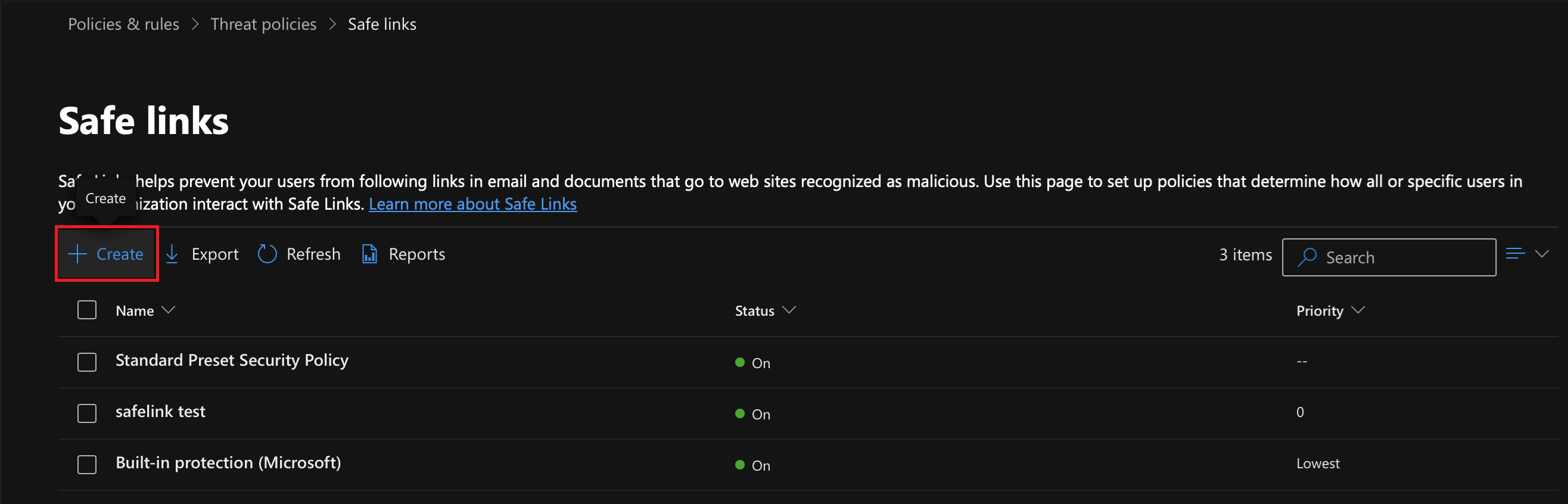
4. Set the policy name: Enter a name for the policy, for example "Cyber Guru Links", and click "Next".
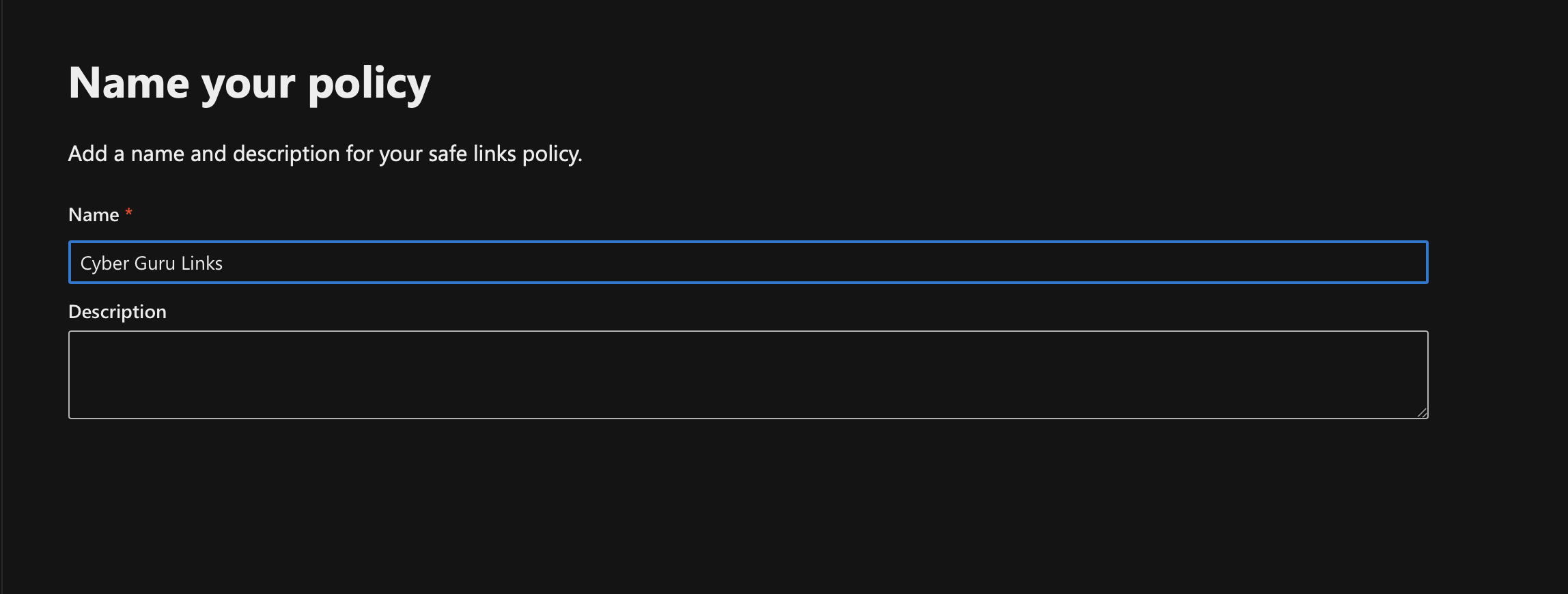
5. Configure the "Domains" field
In the "Domains" section, enter your organization's internal domains that are used in Cyber Guru phishing simulations (e.g., the company domain of the recipients).
6. Click on the "Manage URLs" option in the "Do not rewrite the following URLs in email" section.
7. Click "Add URL" and enter the landing page domains, using the indicated wildcard syntax (e.g., *.domainname.ext).
The landing page domains are available on the platform in the "Help > Support - Knowledge Base" section
8. Save the URLs
Once you've entered all the domains, click "Save" and then "Done".
9. Complete the policy creation
Continue by clicking "Next", leave all the following settings as default, and finally click "Submit".