The "Featured Company" section of the Dashboard is designed to simplify and optimize the management of Companies that require urgent attention.
This visibility is available for an MSP role or higher.
This section only includes Companies with critical situations or activities that need monitoring, such as:
-
Campaigns pending approval
-
Expiring licenses
-
Issues with a release
There is a dropdown menu that allows filtering by alert type, enabling you to view only the alert of interest.
When a Company is featured, an alert symbol (a warning icon) will appear next to its name.
Campaign Pending Approval
If a phishing campaign is awaiting approval, the Company will be highlighted. This allows for prompt intervention to approve the campaign and start the planned activity.
Companies with Auto-approval for campaigns will not appear in this list.
By clicking on the three vertical dots in the "Actions" column, you can click on "View Campaign". This action redirects directly to the "Release Management" section, where you can quickly view and approve the pending campaign.
Expiring Licenses
When one or more licenses associated with a Company are nearing expiration, it will be highlighted. This allows you to monitor and renew the licenses to avoid service interruptions.
The alert appears 30 days before the expiration of one of the licenses.
By clicking on the three vertical dots in the "Actions" column, you can click on "View Licenses". This action redirects directly to the "Distribute Licenses" section, where you can quickly and efficiently manage the licenses associated with the Company, checking those that are expiring.
Issues with a Release
If there was a problem with a release, the Company will be flagged in the "Featured Company" section with an alert in the "Releases" column.
By clicking on the three vertical dots in the "Actions" column and selecting "View Release", you access the section dedicated to all releases, where you can view the release that encountered an error.
Within this section, there is a "Retry" button, which allows you to restart the release process easily and immediately.
If Student Caring is active for the release, informative emails are automatically sent to the involved users, ensuring continuity in communication.
"Company Management" Section and Alerts
Within the "Company Management" section, users with an MSP role have access to the complete list of managed Companies.
There is a dedicated column for alerts, highlighting any critical issues related to each Company.
When one of the following problems occurs:
-
Campaigns pending approval
-
Expiring licenses
-
Issues with a release
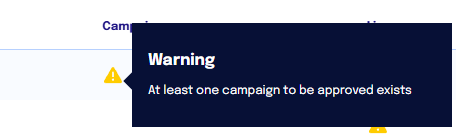
A generic alert icon is shown in the column. Hovering over the icon allows you to view an informative tooltip with details of the problem (or problems, if multiple).
In the "Actions" column, there is an option "Approve Campaign", which allows direct access to the "Release Management" section. The "Releases" option, on the other hand, opens the release history, with the possibility to Retry in case of an error.